
Clothing Color Change
A clothing color change that keeps the pattern and folds. Pick the garment, choose a color or type a hex code. Your first image is free, no sign-up.
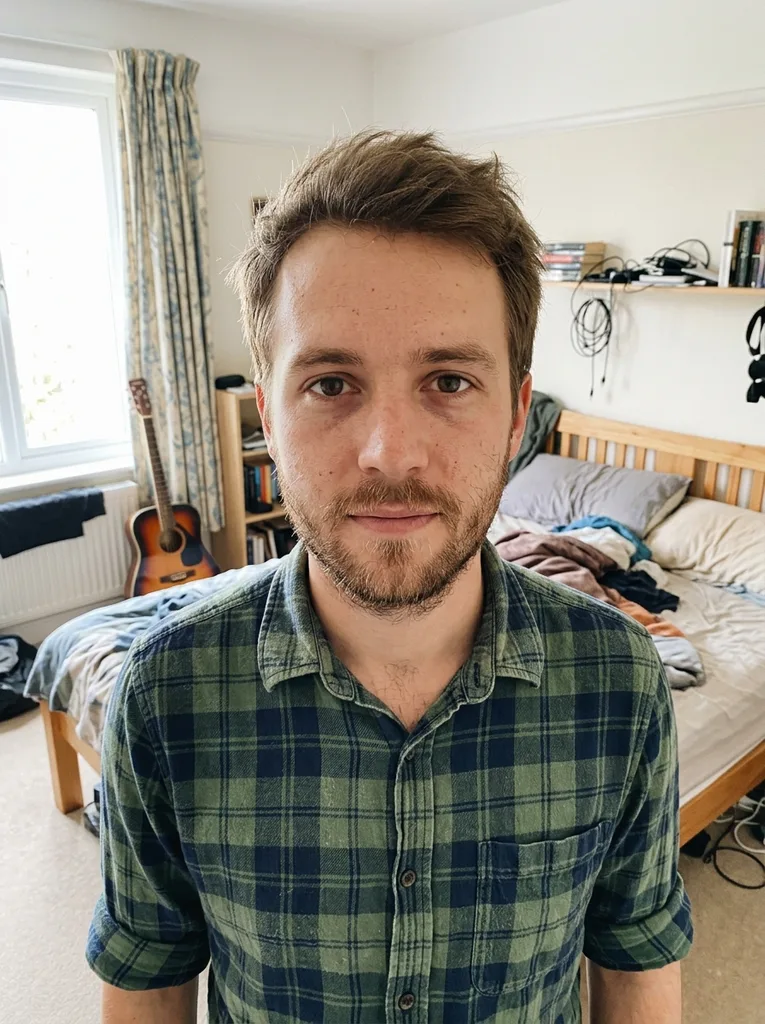 Before
 After
Example result. Upload your photo to make yours.
How to change clothes color in a photo
A clothing color change here takes one photo, two choices and one run.
- 1
Upload a photo of the clothes being worn
Click or drop a JPG, PNG or WebP up to 10 MB; HEIC photos from a phone are converted in the browser first. Our test photo was a man in a green plaid shirt.
- 2
Pick the garment and the new color
Under Recolor, choose Top, Bottom, Dress or Whole Outfit, then one of the nine color buttons. For a shade that isn't listed, type a color name or hex code in Custom color; it replaces the button.
- 3
Generate, compare, download
After a short wait the result shows in the Result panel, beside the photo you uploaded. Compare the clothing color change with your original, then download it, because results aren't saved to a gallery.
Why this clothing color change looks like the same shirt
What the recolor is told to do, and what our test showed.
Dyed, not redrawn
The model is told to change only the color and keep the garment's shape, cut, fabric texture, stitching, folds and shading. In our test a green plaid shirt came back as the same plaid shirt in red.
Patterns shift color, not design
On a patterned or printed piece, the instruction is to keep the design and move its main color. The plaid in our test kept its lines, its checks and its creases after the clothing color change.
Four targets, one per run
Top covers shirts, T-shirts, sweaters, blouses and jackets. Bottom covers trousers, jeans, skirts and shorts. Dress is for dress color changing, and Whole Outfit is told to recolor every garment but skip shoes and accessories.
Nine named colors or your own
Red, Navy, Black, White, Emerald, Pink, Yellow, Lavender and Beige sit on text buttons, with Red preselected. Custom color takes up to 40 characters, such as olive green or #6B8E23.
The rest of the photo is told to stay
Face, skin, hair, body, pose, the other clothes, the background, the lighting and the framing are all on the keep list. In our test everything around the shirt stayed as it was.
One free image, no account
Each visitor gets one free image across the whole site, with no sign-up and no plan to buy. Settle on the garment and the color before you run your clothing color change.
Checklist before your clothing color change
Set these up first, since one clothing color change is your whole free allowance.
- Use a photo where the garment you want recolored is in full view, not hidden behind arms, bags or long hair.
- Pick a photo taken in even light, which shows the new color most accurately; strong colored lamps tint the result.
- Match the Recolor button to the clothes: a dress is Dress, and Whole Outfit gives a shirt and jeans the same new color.
- For a specific brand or paint shade, type its hex code in Custom color instead of a vague name like dark green.
- Leave Custom color empty when you want one of the nine buttons, because a filled field overrides the button.
- Write beige, sand or camel for skin-like shades: the word nude is refused, even as a color name.
- Compare the result with your original before you download it, and check the edges, cuffs and any logo.